Home / Guides / Publishing
KDP Keywords and Categories: How to Choose Them in 2026
 By AuthorWings editorial team
Updated
9 min read
By AuthorWings editorial team
Updated
9 min read
Short answer
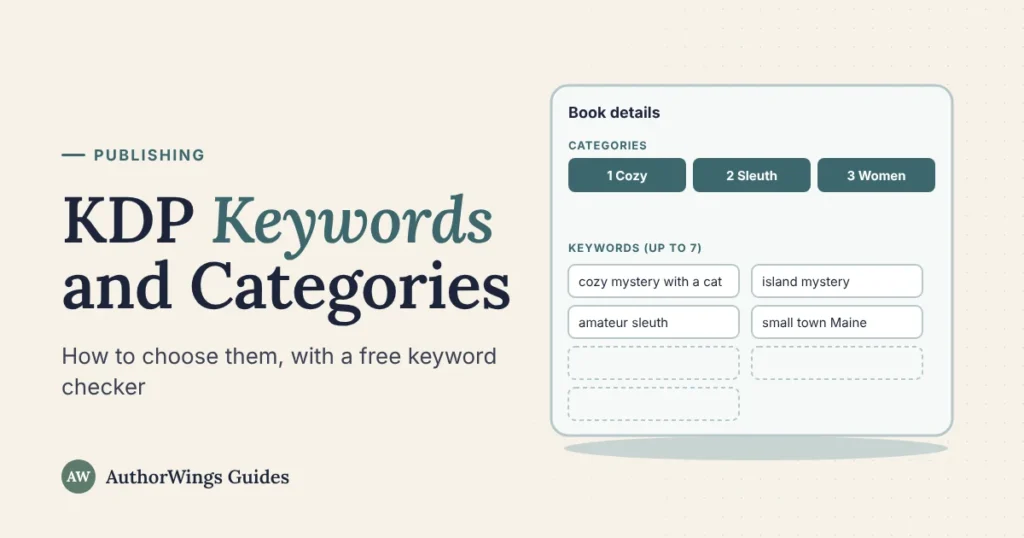
As of October 2026, Amazon KDP lets you choose 3 categories and up to 7 keywords for your book. Categories are the Amazon shelves your book sits on; keywords are extra search phrases that help readers find it. Use specific words and short phrases readers would search for, and don’t repeat words already in your title or categories.
Your cover and description sell the book, but categories and keywords help decide whether readers find it. You set both in KDP when you enter your book’s details, and you can change them later. This guide covers KDP’s own rules, a free way to research keywords, and a checker for your seven keywords. For the rest of the setup, see how to self-publish on Amazon.
Title
The Lantern Log
Categories 3 slots: shelves readers browse
1 Mystery: Cozy
2 Mystery: Amateur sleuth
3 Women sleuths
Keywords up to 7: phrases readers type
What are KDP keywords and categories?
They do two different jobs.
Categories
Categories are Amazon’s digital shelves, sorted by genre and topic, from a broad genre down to a narrow subgenre. Readers who browse a shelf can find your book there, and as of October 2026, your book can rank in up to three category best seller lists.
Keywords
Keywords are short phrases you add behind the scenes. They help Amazon match your book to searches, such as “cozy mystery with a cat” or “budget meal prep for one.”
Both are in the Details section of your book in KDP. You set up each format, such as the ebook and the paperback, separately, so check keywords and categories on each one; KDP says some categories aren’t available for every format.
How to choose KDP categories
KDP’s categories page says you can select 3 categories when you create a book. As of October 2026, here’s how it works:
Marketplace›Category›Subcategory›Placement
- Check your primary audience and primary marketplace first. Categories differ by Amazon store, so choose them for your primary marketplace, such as Amazon.com.
- Pick a category, such as Romance.
- Pick a subcategory, a narrower genre within it.
- Pick a placement, the last level; we suggest the narrowest one that fits. Then repeat for your other two categories.
A few rules from KDP’s help pages:
- Children’s books must have a reading age (0 to 2, 3 to 5, 6 to 8, or 9 to 12) to go in Children’s categories, and Teen and Young Adult books 13 to 17 (ranges differ on some stores, such as Amazon.de). Books marked as having sexually explicit images or titles can’t go in Children’s categories or have a reading age, and KDP removes explicit books from Children’s and Young Adult categories. See how to publish a children’s book.
- Choose the closest match if the shelf you want isn’t offered yet. KDP says Amazon updates its categories from time to time and may remove a category that doesn’t match your book.
- Changes can take up to 72 hours to show, and KDP reviews them.
How to pick well: look up books like yours on Amazon, open each one’s page, and note the Best Sellers Rank categories under Product Details. In our experience, a specific shelf with books like yours is a better home than a broad one, because your book competes with fewer titles there.
How to choose Amazon KDP keywords
KDP’s keyword page says to use up to seven keywords or short phrases, and to think about how a reader would search for your book. Its tips:
- Put words in the order readers type them: “military science fiction,” not “fiction science military.”
- Search your keywords on Amazon first, and check the suggestions in the search box as you type.
- Be specific: KDP says single words work better than phrases, and specific words work better than general ones.
KDP lists five kinds of keywords, with fiction examples. Here’s how they could look for a novel, plus our adaptation for nonfiction:
Setting
Fiction
small town Maine
Nonfiction
home office
Character type
Fiction
single dad
Nonfiction
first-time manager
Character rolenonfiction: reader
Fiction
strong female lead
Nonfiction
busy parents
Plot theme
Fiction
second chance romance
Nonfiction
paying off debt
Story tonenonfiction: style
Fiction
heartwarming
Nonfiction
step by step
In our experience, many romance readers search by trope, such as “enemies to lovers” or “fake dating,” so tropes make strong romance keywords. Your book description can use the same reader words, since readers see that text.
Keywords KDP says to avoid
KDP has a zero-tolerance policy for metadata, including keywords, meant to advertise, promote, or mislead. As of October 2026, its keyword page says to leave out:
- Words already in your title, contributors, or categories. KDP says not to repeat them.
- Words common to the category, such as “book.”
- Quality claims, such as “best novel ever.”
- Time-sensitive words, such as “new” or “on sale.”
- Spelling mistakes and near copies that differ only by spacing, punctuation, capitals, or plurals. Different accepted spellings, such as two translations of a name, are fine.
- Other authors’ names and brands you don’t own.
- Quotation marks and HTML.
- Amazon program names, such as Kindle+ (formerly Kindle Unlimited) or KDP Select.
Check your 7 keywords
Paste your title and keywords below. The checker flags common problems from KDP’s avoid list, plus a few extra risky words. Nothing is saved or sent.
KDP keyword checker
Checks common problems from KDP’s avoid list, plus a few extra risky words. Nothing is saved or sent.
How to find KDP keywords for free
You don’t need a paid tool to start. Amazon’s own search box suggests phrases as you type. Steps 2 and 4 are our method; steps 1 and 3 come from KDP’s keyword page:
cozy mystery a
- Example suggestions
- cozy mystery and cats
- cozy mystery amateur sleuth
- cozy mystery audiobook
- Start typing a phrase that describes your book in Amazon’s Kindle Store or Books search, and note the suggestions that appear. KDP suggests checking these suggestions, which show phrases Amazon offers shoppers.
- Add a letter after your phrase (“cozy mystery a,” “cozy mystery b”) to see more endings.
- Search each keyword before you publish. If the results aren’t books like yours, change it.
- Read reviews of similar books. The words readers use (“slow burn,” “found family,” “easy to follow”) make good keywords.
Paid keyword tools can estimate how many people search a phrase, but they’re optional. In our view, the test that matters is whether the search results look like your book.
Do keywords add your book to more categories?
Not extra ones you can’t choose yourself. Older guides talk about requesting up to 10 categories from KDP support, or adding special words to unlock extra shelves. As of October 2026, KDP’s categories page describes choosing 3 categories and no request process. It also says your categories plus your keywords tell Amazon where to shelve your book, and keywords can help when no category fits it exactly.
What does happen: your book can rank in up to three category best seller lists, based on customer activity, according to KDP’s sales rank page. So pick 3 categories that fit, and use keywords for reader searches and to support the shelves you chose. Don’t repeat your category words, which KDP’s keyword page says to avoid.
How to change keywords and categories
As of October 2026, you can change keywords as often as you like, and update categories after publishing. KDP reviews every update, and you can only edit a book whose status is Live. Here’s how:
- Go to your Bookshelf in KDP.
- Click the ellipsis (…) next to the book and choose Edit details for the format you want to change (ebook, paperback, or hardcover).
- Edit your keywords, or click Edit categories and Remove one first if you already have three.
- Click Save and Continue on the Details and Content pages, then Publish at the bottom of the Pricing page.
Category changes can take up to 72 hours to show. Change one thing at a time and give it a few weeks, so you can tell what made a difference. After your book is live, set up your author page with Amazon Author Central.
Want it done for you?
Every book publishing tier we offer, from $249, includes your book details, with 3 categories and 7 search keywords chosen so readers find your book. Already published? Our Amazon page setup ($399) writes your Amazon description, keywords, and categories, and sets up your author profiles. For everything from editing to launch, see our self-publishing packages.
Amazon setup
Get your book found on Amazon
We choose your categories and keywords, write your book details, and set everything up in your name.
- Amazon publishing, with 3 categories and 7 keywords $249
- Amazon page and author profiles $399
KDP keywords and categories FAQ
How many keywords can you use on KDP?
As of October 2026, up to seven. KDP’s keyword page says to use up to seven keywords or short phrases, and each box has a character limit shown on the form. Be specific, put words in the order readers search, and don’t repeat words already in your title or categories.
How many categories can you choose on KDP?
Three. As of October 2026, KDP’s categories page says you can select 3 categories when you create a book, and you set up each format separately. Your book can then rank in up to three category best seller lists, based on customer activity. KDP’s current pages describe no way to request extra categories.
Can you change KDP keywords after publishing?
Yes. As of October 2026, KDP says you can change keywords as often as you like. Open your Bookshelf, click the ellipsis next to the book, choose Edit details, change the keywords, then click Publish at the bottom of the Pricing page. Category changes can take up to 72 hours to show. Change one thing at a time so you can see what worked.
Should KDP keywords be single words or phrases?
Either. As of October 2026, KDP’s keyword page says to use keywords or short phrases, and adds that single words work better than phrases and specific words better than general ones. Put words in the order readers search, such as “military science fiction,” and don’t spend a box on a word your categories already cover.
Why isn’t my book showing in the category I chose?
Give it time first: KDP says new categories can take up to 72 hours to show. Your product page shows the best seller categories your book ranks in, and customer activity decides which ones those are, so a chosen category may not always be listed there. Also check that the category fits the book: KDP may remove a category that doesn’t match its content, children’s categories need a reading age, and some categories aren’t available for every format. If it still doesn’t show, contact KDP support.
Related reading
AuthorWings editorial team
The AuthorWings editorial team writes and updates our guides for first-time authors. Every post is read and edited by a person on our team before it is published.