Home / Guides / Design and Illustration
KDP Word Template: How to Format Your Book in Word
 By AuthorWings editorial team
10 min read
By AuthorWings editorial team
10 min read
Short answer
KDP offers free Microsoft Word templates for every standard paperback trim size, with the page size and margins already set. Download KDP’s template ZIP, open the file for your trim size, paste in your text, apply the styles, add page numbers, and save a PDF with every font embedded. Then check the inside margin against your final page count.
A KDP Word template saves you the hardest part of formatting a paperback in Word: setting the page size and margins. This guide walks through it step by step, with a calculator for the exact settings and a check to run before you upload. Standard manuscript format, the double-spaced file you send agents and editors, is a different job; see our guide to standard manuscript format. If you’d rather hand it off, our book formatting services start at $199 for a print interior.
What KDP’s Word template includes
KDP’s templates come in two ZIP downloads. Inside each is a folder per language with one Word file per trim size:
- Blank: the page size and margins are set, with no content. Best if your book has a simple layout and you want to build it yourself.
- With sample content: adds a formatted title page, table of contents, and chapters with placeholder text. You keep what you need and replace the rest.
You still check the template’s inside margin against KDP’s table for your page count, add the page numbers to the table of contents, and embed your fonts. The template is for the paperback; an ebook needs its own file (see the FAQ).
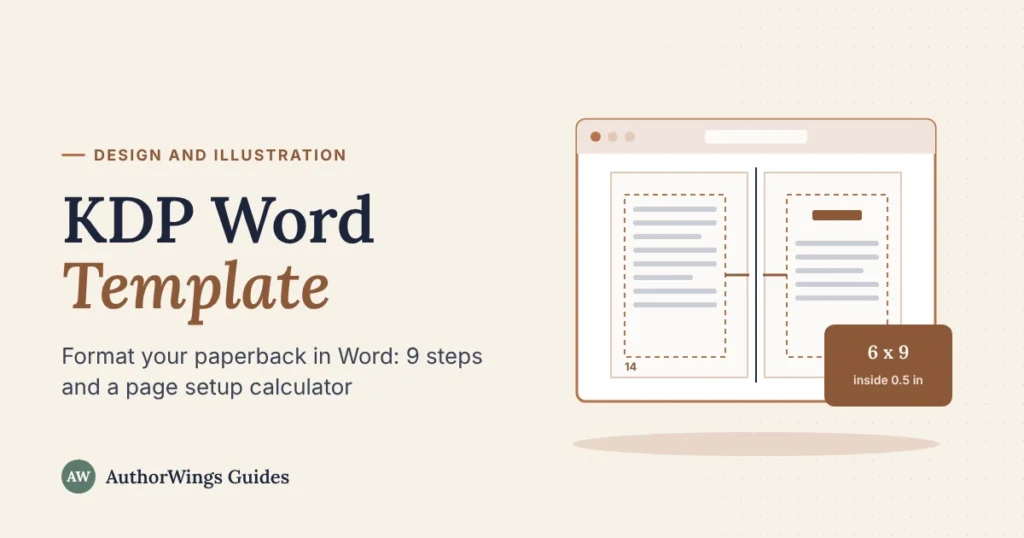
Where things sit on a printed spread
Chapter 2
- Inside margin: the wider margin next to the spine. It grows with your page count.
- Mirror margins: left and right pages swap their inside and outside margins.
- Running header: usually the author name on left pages and the book title on right pages, left off chapter openings.
- Page numbers: usually on the outside corners, and left off blank pages.
How to format your book with the KDP Word template
1. Choose your trim size and download the template
Pick your trim size first, because the template is set to it and it can’t change after you publish. KDP says 6 x 9 inches is the most common US paperback size; our guide to KDP trim sizes shows them all. Download the ZIP from KDP’s paperback manuscript templates page and open the file for your trim size. Then open Layout, Size, More Paper Sizes and confirm the width and height, with Apply to set to Whole document: some sample-content files, including 8.5 x 11, have most of their sections set to a smaller page size.
2. Check the inside margin for your page count
The inside margin, next to the spine, has to grow as the book gets thicker. KDP’s minimum is 0.375 inch up to 150 pages, rising to 0.875 inch at 701 to 828 pages. If the template’s margin is already wider, you can keep it. Use the calculator below, and check again once your page count is final, because a longer book can push you into the next band.
3. Paste your text and apply styles
Paste your manuscript into the template with Merge Formatting (the Paste Options button that appears after you paste), which drops the old fonts and spacing and keeps italics and bold used within a paragraph. Whole paragraphs in italics lose it, so check them. Apply the template’s body style to your paragraphs and a heading style to each chapter title, so every chapter matches. Use Heading 1 if you want an automatic table of contents or an ebook later; the sample template’s own chapter style isn’t a heading, so restyle Heading 1 to match it. Turn on Widow/Orphan control in the body style (Paragraph, Line and Page Breaks), because the sample templates have it off; it stops single lines being stranded at the top or bottom of a page.
4. Set up the front matter
Use the template’s title page and add a copyright page (our copyright page template has wording you can copy), then any dedication and the table of contents. Delete the sample pages you don’t need.
5. Start each chapter with a section break
End each chapter with a section break (Layout, then Breaks) rather than a row of empty lines. A Next Page break starts the chapter on the next page; an Odd Page break starts it on a right-hand page, which many novels do. Odd Page breaks can add blank pages that don’t show in Print Layout view, only in Print Preview (File, Print) and the PDF, so check for them before you upload. KDP allows no more than 4 blank pages in a row at the start or middle of a book. Page 1 of your main text should fall on a right-hand page, because odd numbers belong on the right.
6. Add page numbers and running headers
Number the main text from 1 in Arabic numerals; front matter usually has Roman numerals or none. In the first section of your main text, turn off Link to Previous for the header and for the footer separately, so the front matter keeps its own settings. Then tick Different Odd & Even Pages so left and right pages can carry different headers. Many books leave the header off chapter openings (Different First Page does this) and leave blank pages empty. Update the template’s headers to your title and author name, matching your KDP title setup.
7. Add images at 300 DPI
Insert images at their final size with a resolution of at least 300 DPI (dots per inch), and stop Word shrinking them: on Windows, File, Options, Advanced; on a Mac, Word, Preferences, Edit. Under Image Size and Quality, tick “Do not compress images in file”. If any image runs to the edge of the page, your book needs bleed, which means a larger page size and a PDF upload; the calculator adds it for you.
8. Remove the sample text and update the contents
Delete every piece of placeholder text, including in headers. KDP’s sample table of contents is typed text, so type in the final page numbers once the layout is done. If you’d rather Word did it, replace it with an automatic one (References, then Table of Contents), which lists your Heading 1 chapters and updates with a right-click and Update Field.
9. Save a PDF with every font embedded
KDP recommends a PDF for paperbacks. Use fonts whose license allows embedding and print use; some fonts can’t be embedded, and Word then turns their text into images in the PDF.
- Word for Windows: in File, Options, Save, tick “Embed fonts in the file” and leave the two boxes under it unticked. Then File, Save As (or Save a Copy), choose PDF, and set Optimize for to Standard (publishing online and printing). KDP notes that saving as PDF can lower image resolution, so for an illustrated book check the images in the PDF at 100 percent.
- Word for Mac: File, Save As, choose PDF as the file format, then pick “Best for printing”, not the option for electronic distribution.
Open the PDF and check that every page looks the way it did in Word.
Word page setup calculator
Choose your trim size, page count, and bleed to see the exact settings to type into Word.
Word page setup calculator
KDP’s margin rules for paperbacks, turned into the numbers you type into Word.
Set the page size first. On Windows: Layout, Size, More Paper Sizes. On a Mac: Format, Document, Page Setup, Paper Size, Manage Custom Sizes. Then Layout, Margins, Custom Margins (on a Mac, Format, Document). Set Multiple pages to Mirror margins on Windows, or tick Mirror margins on a Mac. Type the inside and outside values and leave Gutter at 0, because Word adds the gutter on top of the inside margin.
KDP’s inside margin: 0.375 in for 24 to 150 pages, 0.5 in for 151 to 300, 0.625 in for 301 to 500, 0.75 in for 501 to 700, and 0.875 in for 701 to 828 (the maximum depends on trim size, paper, and ink). Outside, top and bottom margins: at least 0.25 in, or 0.375 in with bleed. With bleed, add 0.125 in to the page width and 0.25 in to the height.
The outside, top, and bottom values are a starting point we suggest for comfortable reading; KDP’s minimum is shown under each one.
Check your PDF before you upload
Word problems often show up only in the PDF, so check the PDF itself; these are the same places Word files often fail.
- Every font is embedded (in Adobe Acrobat Reader: File, Properties, Fonts). “Embedded Subset” also counts as embedded.
- The page size in the PDF matches your trim size, plus bleed if you used it.
- The inside margin is right for the final page count.
- No template text, comments, or highlighting are left anywhere.
- Odd page numbers are on right-hand pages, and blank pages carry no header or number (a convention, not a KDP rule).
- There are no more than 4 blank pages in a row from section breaks.
- Images look sharp when you zoom to 100 percent.
Then upload it, check every page in KDP’s print previewer, and order a printed proof. After that, see how long KDP review takes.
When Word isn’t the right tool
Word handles novels and text-led non-fiction well. It gets harder with photos or art on many pages, pages that run to the edge, two-column layouts, or picture books; for those, see our guide to formatting a children’s book, and our comparison of book formatting software.
If you’d rather not do it yourself, AuthorWings formatting for novels and non-fiction up to 20,000 words is $199 for print, $89 for the ebook, or $429 for ebook, paperback, and hardcover, plus $25, $15, or $35 for each extra 10,000 words.
Book formatting
A print interior that’s ready to upload
We format your book for print and ebook, check every file against KDP and IngramSpark, and send you the files to keep.
- Print from $199
- Ebook from $89
- All three editions $429
Frequently asked questions
Can I upload a Word file to KDP instead of a PDF?
Yes, if your book has no bleed. KDP accepts DOC, DOCX, RTF, HTML, and TXT files for paperbacks without bleed. A book with images to the edge must be uploaded as a PDF. KDP recommends a PDF either way, because you see exactly what will print.
Can I use the KDP Word template for my ebook?
Not as it is. Ebooks reflow to fit each screen, so page size, margins, headers, and page numbers don’t apply. Save a copy and remove the headers and page numbers. Amazon requires a navigation table of contents in every Kindle ebook, so keep Heading 1 on chapter titles and insert one from the References tab, or use Kindle Create.
What font size should I use for a KDP paperback?
Body text in print books usually sits between 10 and 12 point, depending on the font. KDP’s minimum is 7 point. Print one page at actual size to check, because a font that looks fine on screen can be too small or too large on paper.
Why did KDP reject my Word PDF?
Common causes are fonts that aren’t embedded, an inside margin too small for the page count, too many blank pages, images that should bleed but stop short, or a page size that doesn’t match the trim size you chose. KDP’s previewer flags the problem pages; fix them in Word and export a new PDF.
Related reading
AuthorWings editorial team
The AuthorWings editorial team writes and updates our guides for first-time authors. Every post is read and edited by a person on our team before it is published.